Jump to main content
User menu
Log In
0 items
Secondary navigation
Join (It's Free!)
Donate
Shop
Submit Data
Main menu
Programs
Volunteer Fish Survey Project
About
Submit Data Online
Download Offline Data Entry Program
Explore Database - Create Reports
Top Stats
Geographic Zone Codes & Maps
Publications - See How REEF Data Have Been Used
Experience Levels
Golden Hamlet Club
Great Annual Fish Count
Monitoring Projects
REEF Surveyor Toolbox
SMILE Project
Invertebrate and Algae Monitoring
Interpreting REEF Data
Snorkeling Surveys
Invasive Species Program
About
Florida Keys Lionfish Derby & Festival
Pay Registration Fee
Complete Waivers
About Lionfish Derbies
Past Derby Results
Host a Sanctioned Derby
Collecting & Handling Workshops
Lionfish Jewelry Workshops
Lionfish Resources
Report a Nonnative Species Sighting
Become a Program Sponsor
Grouper Moon Project
About
Publications
Research Components
Spawning Videos
Collaborators and Funders
Grouper Moon The Next Phase Documentary by Guy Harvey
Grouper Moon Education Program Resources
Marine Conservation Internship and Fellows Programs
About
Internship Description
Application
Interns Present and Past
Funding Opportunities
Ten Reasons to be a REEF Intern
Marine Conservation Fellows Program
Leadership Intern Program
Intern Alumni Network
Conservation Partners
About
Directory
REEF Trips
Schedule
Program Overview
Upcoming Field Survey Trips
2024 Trips
2025 Trips
2026 Trips Preview
Schedule Archive
Field Survey Trips
About and FAQs
Policies
Trip Leader Bios
Educator Credit for Participation
Learning Resources
Fishinars and Fishy Hours
About
Upcoming Fishinars and Fishy Hours
Archive Directory
Full Listing - past and upcoming
Other Resources
Quizzes of Common Fish and Invertebrates
Quizlet Study Decks
REEF Surveyor Toolbox
Regional ID Facebook Groups
Education
Ocean Explorers Education Program
About
Discovery Programs
Expeditions
Virtual Field Trips (gr. 3-8)
Virtual Case Studies (gr. 9-12)
Program Topics
Interest Form
Policies & Rates
Frequently Asked Questions (FAQs)
For Educators
About
In-person and Virtual Programs
Education Advisory Panel
Educator in the Field Fellowship
Livestream With Your Class
Educator Resources
Workshop for Educators
Teacher Credit Opportunities
Using REEF Database as an Educator
News
Newsletters
Monthly e-News -- "Making It Count"
REEF Notes Newsletter Archive (1994-2007)
REEF-in-Brief eNews Archive (2005-2007)
Press
Press Releases
REEF in the News
Membership and Giving
REEF Membership
Join - It's Free
Why Become a Member
Volunteers of the Year
Support REEF
Donate Now
'Ocean Unity' Garden Display
Memorial Donations
Monthly Giving REEF Guardians
Honorary Donation
Employer Matching Companies
Donor Recognition Levels
Oceans for All Fund
Gallery of Paul Humann Limited-edition Prints
Other Ways to Give
Gifts of Stock
Planned Giving - Legacy Society
Shop to Support
Raise Money for REEF
Symbolic Animal Adoption
Vehicle Donation
Business Support
Corporate Partners
Cause Marketing
Sponsorship Opportunities
Conservation Partners
About
About, Mission, Vision
Contact Us
What is REEF?
Mission, Vision, and Programs
FAQs
Financials and Transparency
Get Email Updates
2023 Impact Report
2022 Impact Report
2021 Impact Report
2020 Impact Report
Staff, Board, & Panels
Staff Directory
Staff Bios
Board of Trustees
Board Bios
Education Advisory Panel
REEF Campus
Interpretive Center and Campus Description
Facility Rental Information
Events at REEF Interpretive Center
Speakers Bureau
REEF COVID-19 Events Policy
My REEF
My Data
My Dashboard
My Account
Log in
Events
Upcoming and Annual Events
Calendar
Listing of Upcoming Events
Lionfish Derby Series
Fish Out of Water Virtual 5K
Arts & Science Festival
Underwater Photography Contest
Great Annual Fish Count Events
Ongoing Events
Public Events at REEF Interpretive Center, Key Largo
REEF Fish & Friends - monthly seminar series
Fishinars - remote learning
Into the Blue Book Club
Conservation Challenge
REEF Field Survey Trips - Dive Vacations That Count!
REEF Fest - an annual celebration
About - Schedule, Location, FAQs, and more
Registration (closed for 2023)
Seminars
Diving, Snorkeling, Kayaking
Social Events
Conservation Activities
Sponsors and Supporters
Silent Auction and Raffle
2024 5K Registration Now Open!
Choose your favorite Fish Team and sign up today!
2025 REEF Field Survey Trips schedule out now
Join us on a REEF Trip to learn about marine life!
Volunteer Fish Survey Project
Ocean citizen science for divers and snorkelers
Ocean Conservation Events in the Florida Keys
Check out our upcoming REEF Campus events!
Explore REEF's Marine Life Database
Data on fish and invertebrate populations worldwide
Grouper Moon Project
Protecting a Caribbean Icon
Remembering REEF Co-Founder, Paul Humann
Passionate advocate for the oceans, a visionary, and underwater photographer
Protecting the Ocean from Invasive Species
Lionfish Derbies, education workshops and more!
Celebrate Earth Month with the Conservation Challenge
Earn decals with fun challenges throughout the year
Explore. Discover. Make a Difference.
297,027 Surveys and Counting
Submit Data
Explore Data
Monthly e-News - "Making It Count"
April '24 - Studying Hammerheads in Cayman Islands, how to teach fish ID, and more!
View past newsletters
Education Resources
Online and in-person tools for educators
Supporting educators
Upcoming Online Programs
Fishinars - free marine life ID webinars
'Into the Blue' Book Club
All upcoming events
Your Ocean. Your Philanthropy. Your Legacy.
Include REEF in Your Will
Planned Giving
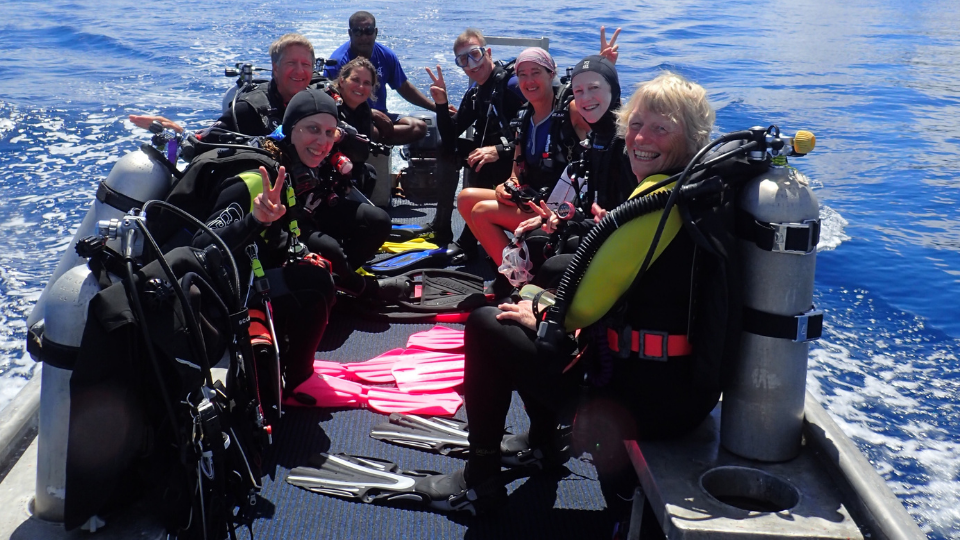
Take a Dive Vacation That Counts
Citizen science trips for divers and snorkelers
Check out upcoming REEF Trips!
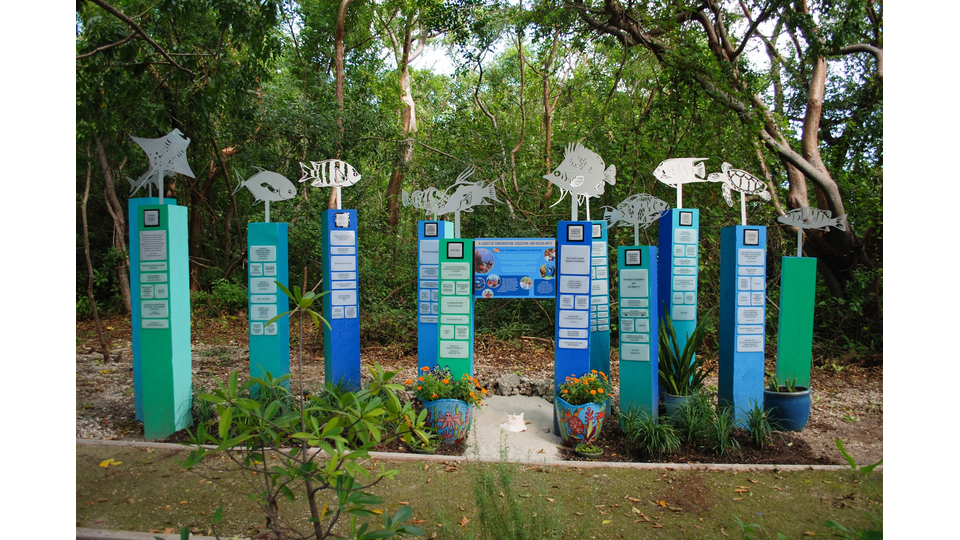
'Ocean Unity': 2020 donor recognition display
Celebrating our 30-year ocean conservation legacy